Written by:
Pierce J.
Published:
September 1, 2026
Learn how to disconnect, pack, and reconnect a home office network, server, and multi-monitor setup so your tech survives the move without data loss.
Moving home office IT equipment safely means backing up your data before anything gets unplugged, labeling every cable before you disconnect it, and packing servers, monitors, and networking gear upright in their original orientation with real cushioning, not just a bath towel. The gear itself is usually replaceable. What is not replaceable is the data sitting on a drive that got knocked around in a box, or the three hours you will lose trying to remember which cable went where when nothing is labeled.
A home office move is not the same job as moving a desk and a filing cabinet. Once you add a NAS, a small server tower, a multi-monitor arm setup, or a mesh network with several access points, you are moving something closer to a mini data center. This guide covers the technical side of that move specifically: the equipment, the data, and the reconnection, rather than the furniture and boxes already covered elsewhere.
Back up everything first, then photograph your current setup before you touch a single cable. This single step prevents the two most common losses in a tech move: unrecoverable files and a rats' nest of cables nobody can reassemble.
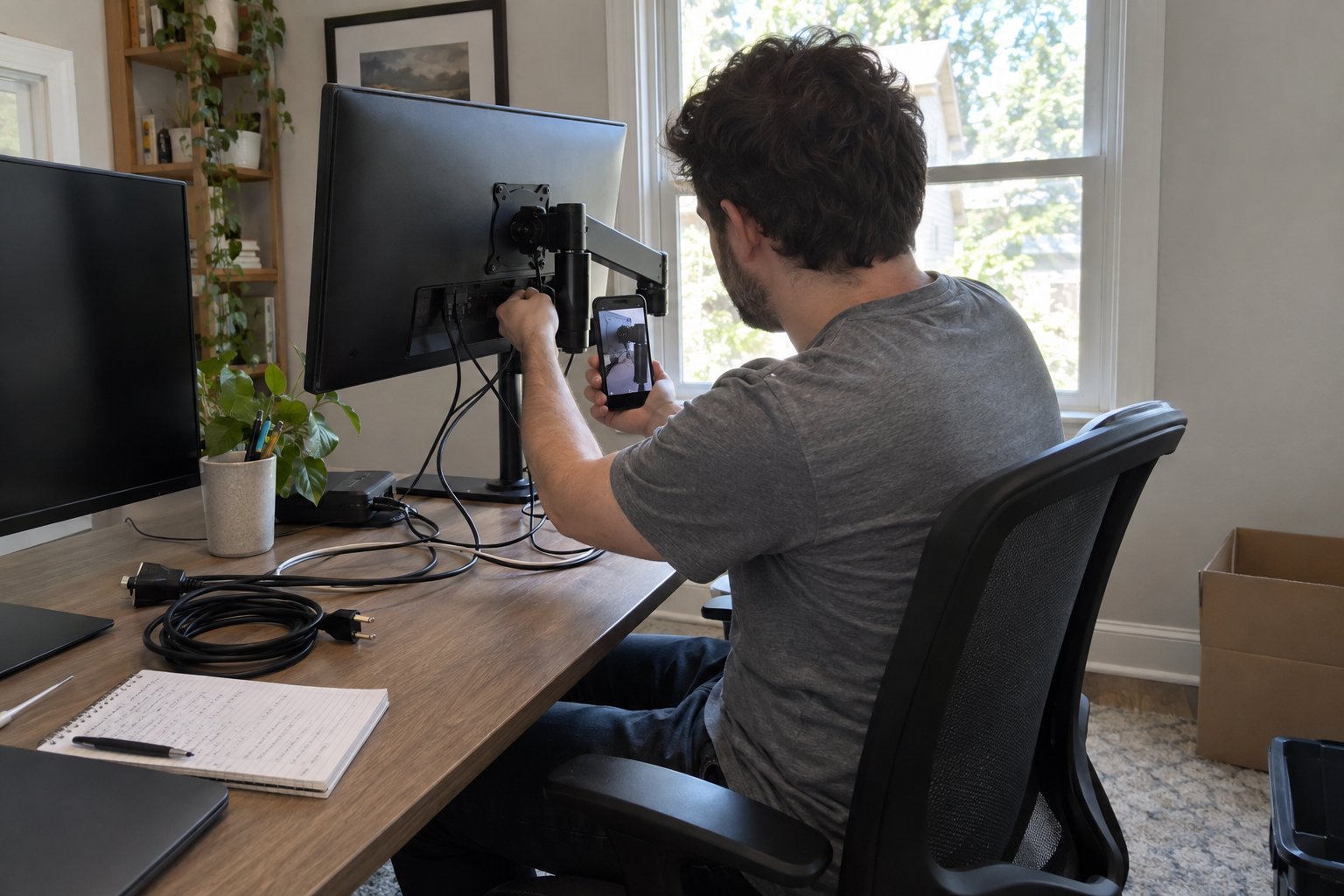
Run a full backup of any server, NAS, or workstation to an external drive or cloud service that will travel with you personally, not in the moving truck. If you run a home server with active databases or a business application, shut it down cleanly rather than pulling power, since an abrupt shutdown is one of the more common causes of drive corruption. Once backups are confirmed, take wide photos of your desk setup and close-up photos of the back of every device showing which port each cable uses. Ten minutes with a phone camera here saves an entire afternoon later.
Use masking tape or cable tags and label both ends of every cable with what it connects and where it goes, such as "Monitor 1 to GPU" or "Modem to router WAN port." Bundle cables by device with a twist tie and drop each bundle into a labeled sandwich bag, then keep all the bags in one clearly marked box that travels with you rather than in the truck.
Pack a server or NAS in its original box if you kept it, or in a snug box with at least two inches of foam or bubble wrap on every side, oriented exactly as it sits normally, since some drives are sensitive to being moved on their side or upside down. Never remove drives from a running array unless you are specifically rebuilding it, and never stack anything on top of the unit.
If your server has hot-swappable drive bays, confirm the drives are seated and locked before packing rather than after, since a jolt in transit can work a partially seated drive loose. For a rack-mounted unit, keep it in the rack rails if the rack itself is moving, and remove the unit entirely only if the rack is being disassembled. Let the server or NAS sit at room temperature for a couple of hours after arrival before powering it back on, especially if it traveled in a hot or cold vehicle, since condensation inside a drive housing is a real risk after a temperature swing.
Move each monitor upright in its original box when possible, or wrapped in a thick moving blanket with the screen facing inward against another soft-sided item, never flat under other boxes. Screens crack most often from pressure applied to the glass while stacked, not from the bump of the ride itself.
If you use a multi-monitor arm or mount, detach each monitor from the arm individually rather than moving the whole assembly attached, since the extra leverage of an arm makes it easier for the mount to shear under a monitor's weight during a bump. Keep the mounting screws and VESA plates in a labeled bag taped to the back of the monitor they belong to. For ultrawide or curved monitors, pack them vertically, never flat, since the curved panel can flex and stress the screen when weight rests on its face.
Pack routers, modems, and mesh access points in a single labeled box with their original power adapters, since generic replacement adapters can deliver the wrong voltage and damage the device. Note your ISP account number and the make and model of your modem before the move in case you need to call for support at the new address.
Contact your internet provider a week or two ahead of moving day to schedule a service transfer or new installation, since availability at the new address can take longer to arrange than most people expect, particularly outside city centers. If your home office depends on reliable internet for client work, treat this call as a priority task rather than an afterthought, and consider a mobile hotspot as backup coverage for the first day or two at the new place.
Set up networking gear first, in the order it normally powers on: modem, then router, then access points, giving each a minute to fully boot before starting the next. Trying to bring everything online at once is the most common reason a home network setup drags on longer than it needs to at a new address.
Once the network is live, reconnect the server or NAS and confirm it rebuilds its connections properly before restoring any workstation. Use your labeled cable photos to match monitors, peripherals, and cables back to the correct ports rather than guessing. Test file access, printing, and any client-facing tools before you consider the office back in business, since discovering a broken connection mid-deadline is worse than finding it during setup.
Handle the backup, cable labeling, and shutdown steps yourself, since only you know which files matter and which server processes need a clean stop, but there is no reason a trained crew cannot handle the physical packing and transport of monitors, desks, and boxed equipment once it is properly prepared. Many home office owners drive sensitive electronics like servers and backup drives themselves and let the crew handle the rest of the room.
If your setup includes specialty electronics you are not confident wrapping or crating on your own, ask about specialty item moving support for oversized or delicate equipment. For the rest of the room, a crew booked through local moving services can handle furniture, boxed peripherals, and the general labor of getting the office moved, while you focus on the parts only you can do.
Once your tech is backed up, labeled, and packed, the rest of a home office move is mostly a scheduling problem: deciding what has to happen before deadlines, what can wait, and how to keep the business running through the gap. If you have not mapped that out yet, the broader guide on moving a home office without losing work covers the timeline and workflow side of the move in more depth.
Whatever day you land on, book it early. Movers fill up fast around the first and last weeks of the month, and a confirmed date gives you a real deadline to back up drives, label cables, and confirm your internet transfer against.
Get a moving quote to lock in a crew that can move the rest of your home office while you handle the tech.
It is safer to carry drives with you personally rather than put them in the moving truck. Temperature swings, vibration, and the chance of a box getting crushed under other items make a personal vehicle or your own bag a much lower-risk way to transport anything holding data you cannot lose.
No, a factory reset is not necessary unless you are giving the router to someone else. Keep your existing configuration so your network comes back online with the same settings once you reconnect it at the new address.
Most consumer and small business NAS units and servers can sit powered off for several days without issue as long as they were shut down cleanly. The bigger concern is temperature and physical handling during transit, not the length of time it spends off.
A moving crew can pack and transport monitors and computer towers as part of a home office move, but it helps to point out which items are sensitive electronics so they get wrapped and loaded separately from general boxes rather than stacked underneath them.
Label both ends of every cable before disconnecting anything, then take close-up photos of the back of each device showing the original setup. Between the labels and the photos, reconnecting at the new address becomes a matching exercise instead of a guessing game.
Whether you’re moving a home, apartment, office, or just a few heavy items, We Haul Nashville is ready to help make the process easier.