
Written by:
Pierce J.
Published:
July 3, 2026
Moving a home office? Learn how to pack electronics, protect equipment, and set up your workspace fast so you lose as little work time as possible.
Knowing how to move a home office is one of the most practically important skills in any relocation that involves remote work, a side business, or even a dedicated study. A home office is not just a room full of furniture — it is a collection of expensive, fragile, and highly interconnected equipment that keeps your professional life running. A monitor that arrives cracked, a desktop tower that was packed upside down, or a filing system that gets scrambled in transit is not just an inconvenience. It is lost work, missed deadlines, and real financial consequences. Getting a home office move right requires a different level of care and a more deliberate sequence than moving a bedroom or a living room.
This guide walks you through how to move a home office from start to finish: how to document and disconnect your technology before a single box is packed, how to protect electronics during the move, how to handle sensitive documents and files, how to pack furniture efficiently, and how to get your workspace back up and running as quickly as possible at the new location. Whether you work from home full-time or just need a functioning desk setup by Monday morning, these steps will get you there without a day of unnecessary downtime.
The single most valuable thing you can do before touching any piece of equipment is to create a visual and written record of exactly how everything is connected. Most people skip this step and then spend hours at the new location trying to remember which cable goes where, why there is an extra power strip, or how the monitor arm was mounted. Ten minutes of documentation before you start saves hours of frustration after the truck is unloaded.
Get your phone out and photograph the back of every device — your desktop, monitor, router, docking station, printer, external hard drives, and any other peripherals. Take wide shots that show the full cable run from device to outlet or hub, and close-up shots of individual ports so you can see exactly which cable is seated where. Label cables with small pieces of masking tape and a permanent marker as you disconnect them: "monitor power," "keyboard USB," "ethernet to router." This takes longer than just yanking cables free, but it is the difference between a thirty-minute setup and a three-hour troubleshooting session.
Before anything leaves the desk, write down every item in the office: model numbers, serial numbers, and a brief condition note for expensive items like laptops, monitors, cameras, and audio equipment. This inventory serves two purposes. First, it confirms that everything arrives at the destination — you will know immediately if something is missing from the truck. Second, it is essential documentation in the unlikely event of damage during the move. Keep this list with you personally, not in a box on the truck.
Electronics are the most expensive and most fragile category of items in any home office, and they require packing methods that are significantly more careful than standard household goods. The goal is to prevent two types of damage: physical impact damage from drops and shifting during transit, and static discharge damage that can occur when electronics are packed without proper insulation.
Original manufacturer boxes are engineered to protect that specific device better than any generic box can. If you kept the boxes your monitor, laptop, printer, or desktop shipped in, use them. The molded foam inserts are designed for the exact weight distribution and vulnerable points of that device. If you no longer have original packaging, use a box that is only slightly larger than the device — too much empty space means the item shifts during transit — and fill all voids with packing paper or bubble wrap, not loosely crumpled newspaper, which can transfer ink and does not cushion as effectively.
Desktop computers should be transported upright whenever possible, in the same orientation they sit on a desk. Transporting a tower on its side — especially a tower with a liquid cooling system — can allow coolant to migrate or cause components to shift under their own weight. If upright transport is not possible, research your specific tower's cooling configuration before laying it on its side, and do so only on the side where the motherboard faces up. Always unplug internal components like graphics cards that are heavy enough to stress their own PCIe slots during transport if the unit will be jostled significantly.
Monitor screens scratch and crack more easily than they look. Wrap every screen — monitor, laptop, tablet, or otherwise — with a clean microfiber cloth directly against the glass first, then a layer of bubble wrap over the top. Do not use newspaper or brown packing paper directly against a screen. Stand monitors upright in their boxes rather than flat; the panel glass is not designed to bear distributed weight across its surface, and flat packing increases the risk of pressure cracks.
External hard drives — especially spinning platter drives rather than solid-state drives — are sensitive to vibration and impact. Wrap each drive individually in anti-static bubble wrap (the pink kind, not standard bubble wrap) and pack them in a small box with generous cushioning on all sides. Before moving day, back up every critical drive to a cloud service or a separate drive that you carry personally rather than put on the truck. A drive can be replaced. The data on it often cannot.
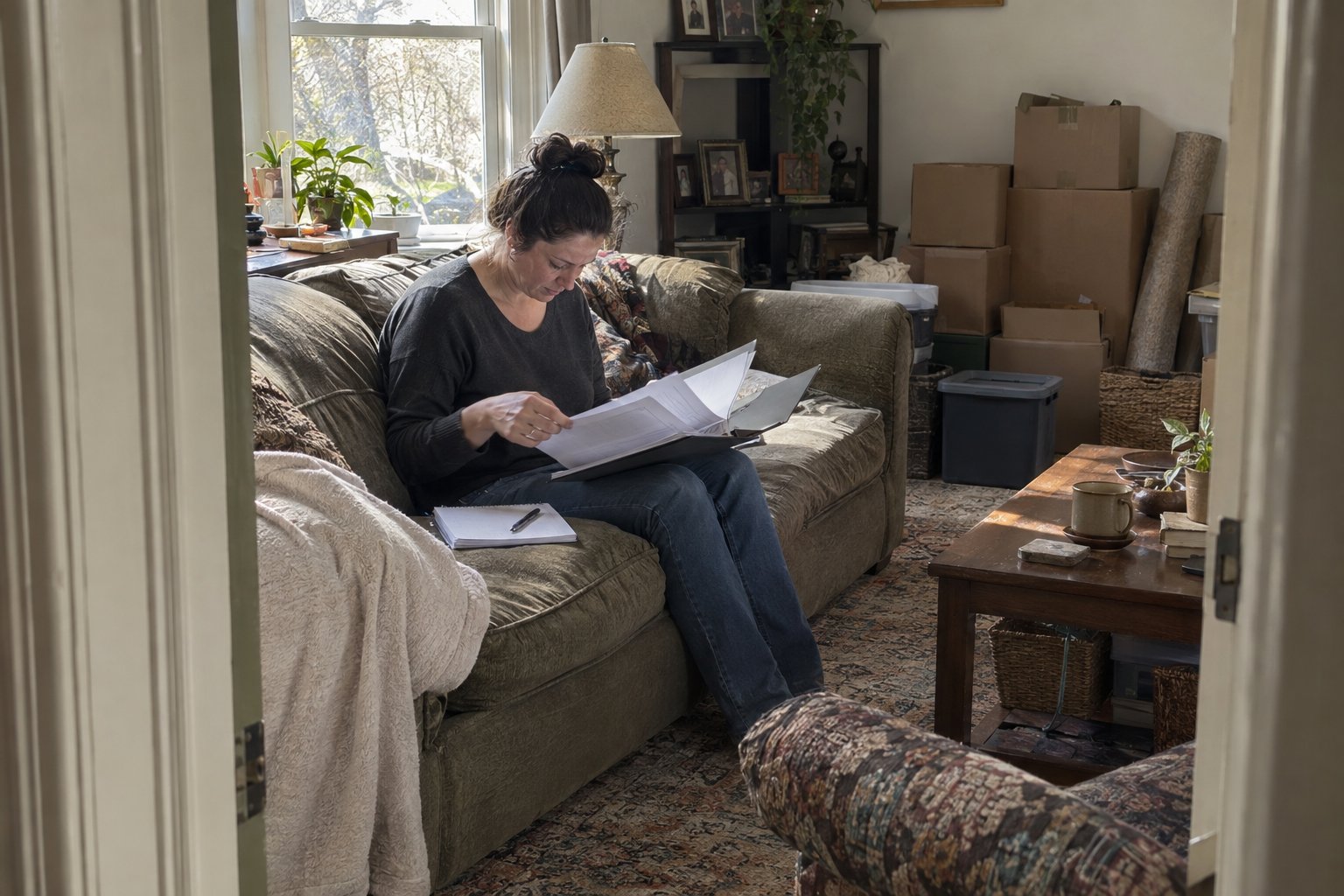
A home office typically contains documents that are irreplaceable — contracts, tax records, client files, financial statements, and personal records. These deserve the same deliberate handling as electronics, and in some ways more, because unlike a broken monitor they cannot be replaced with a purchase.
Moving is one of the best opportunities to purge documents you no longer need. Before packing a single folder, go through your physical files and shred anything that contains personal information and is no longer useful — old bank statements beyond your retention window, outdated contracts, duplicates. What remains should be organized into clearly labeled folders and packed flat in a sturdy file box with a lid, not a standard moving box where files can get crushed under heavier items.
Any document that would be genuinely difficult or impossible to replace — original contracts, passports, birth certificates, insurance policies, tax returns — should travel with you personally, not on the moving truck. Pack these in a dedicated folder or accordion file that stays in your car or bag on moving day. This applies to digital media as well: thumb drives, backup drives, and any physical media with important data should be on your person, not in a box being loaded by a crew.
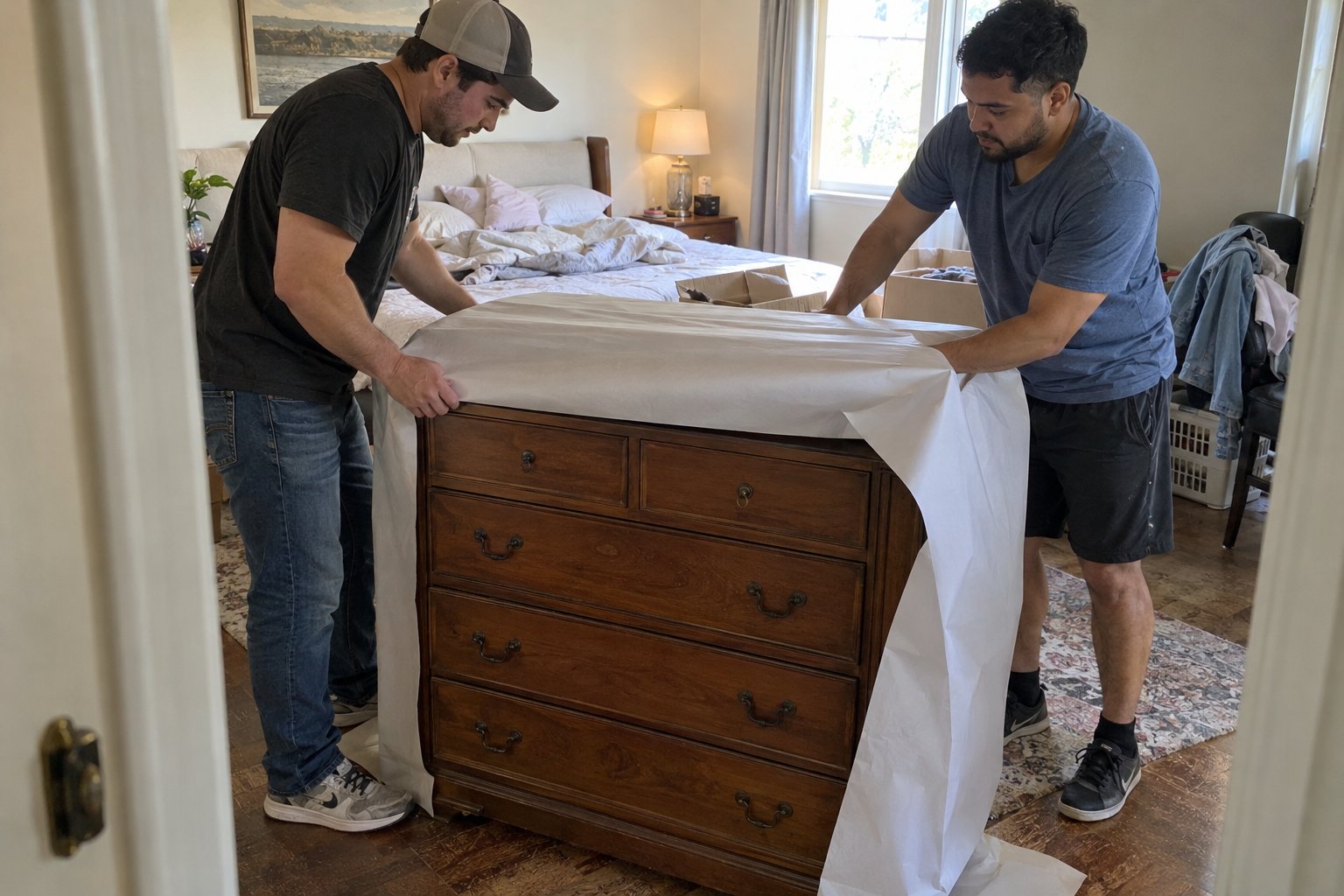
Home office furniture presents a specific set of challenges. Standing desks have electronic components in their legs. L-shaped desks are oversized and awkward. Monitor arms are mounted to desk surfaces in ways that leave damage if removed carelessly. Bookshelves become dangerously top-heavy if not emptied completely. Getting office furniture through doorways and into a new space without damage requires preparation and the right sequence of steps.
Most office desks — even solid wood desks — are easier to move disassembled than assembled. Remove legs, detach hutch components, and take apart any modular shelving before moving day rather than on it. Keep all hardware — screws, bolts, cam locks — in a labeled zip-lock bag taped to the piece it belongs to. This prevents the all-too-common scenario of a desk that arrives at the new home missing its own assembly hardware.
A bookshelf loaded with books is not only extremely heavy — it is structurally vulnerable to racking forces during movement. Remove all books, binders, and objects before moving any shelf unit. Filing cabinets with full drawers can weigh several hundred pounds and will damage floors if tipped. Empty each drawer into labeled banker boxes before the cabinet is moved, and tape the drawers shut on the empty cabinet so they do not slide open mid-transit.
The goal of a well-executed home office move is not just to arrive without damage — it is to return to full working capacity as quickly as possible. The setup phase is where the documentation you created before the move pays off, and where a clear sequence prevents the kind of tangled, frustrated unpacking that leaves a home office half-functional for days.
Before you open a single box of equipment, confirm that your internet is active at the new location. If you transferred service with your existing provider, verify that the connection is live on moving day rather than assuming it will be. If installation is required, schedule it for the day before or the morning of your move so you are not waiting on a technician while a fully assembled office sits unusable. Internet connectivity is the single dependency that everything else in a remote work setup relies on — treat it accordingly.
Pull up the photos you took of your cable runs and connection points before you disconnected anything. Reassemble furniture first, then place equipment, then reconnect cables using your labeled tape markers and photographs as the guide. Power devices on one at a time rather than all at once — this makes it easier to identify any device that is not behaving correctly and trace the cause before your entire setup is live and tangled.
A home office move that is planned correctly is genuinely one of the smoother parts of a relocation. The equipment is valuable enough to warrant real care, and the payoff — walking into a fully functional workspace within hours of the truck being unloaded — is one of the most satisfying parts of getting settled in a new home.
The most important steps are packing electronics in appropriately sized boxes with adequate cushioning on all sides, keeping desktop towers upright during transit, wrapping screens with a microfiber cloth before bubble wrap, and backing up all important data before moving day. Use anti-static packing materials for hard drives and other sensitive components. If you no longer have original manufacturer packaging, choose boxes only slightly larger than the device and fill all empty space with packing paper or bubble wrap to prevent shifting during transit.
Both approaches can work well as long as the equipment is properly packed. If you pack the tower in a well-cushioned box with the unit upright, a professional moving crew can handle it safely. However, for particularly expensive or irreplaceable equipment — a high-end workstation, a custom build, or a machine with liquid cooling — many people prefer to transport it personally in their own vehicle. This is a reasonable precaution. What matters most is that the unit is never transported upside down or on a side that puts lateral stress on heavy internal components like graphics cards.
The most effective approach is a staged setup: pack non-essential office items first, keep one working setup — typically a laptop, power adapter, and your internet hotspot or a mobile connection — available throughout moving day, and prioritize reconnecting your internet and primary work machine as soon as you arrive at the new location. If you do critical client work or have scheduled video calls, communicate potential disruptions in advance and consider whether booking a day at a coworking space on moving day makes sense as a backup.
L-shaped desks should be disassembled into their component sections before the move whenever the design allows it — most L-shaped desks can be separated into two rectangular pieces that are far easier to move through doorways and stairwells. Standing desks with electronic lift mechanisms should have their legs disconnected from the desktop surface and transported with the legs retracted to their lowest position, which reduces stress on the lift components. Keep all hardware in labeled bags taped to the desk section they belong to so reassembly is straightforward at the new location.
Before packing, sort all physical documents and shred anything that contains personal information but is no longer needed. Organize remaining files into clearly labeled folders and pack them flat in a sturdy file box with a lid — not a standard moving box where they can be crushed. Any document that would be difficult or impossible to replace, such as original contracts, tax records, or personal identification, should travel with you personally rather than on the moving truck. For digital files, back up all important data to a cloud service or a separate drive that stays on your person during the move.
Whether you’re moving a home, apartment, office, or just a few heavy items, We Haul Nashville is ready to help make the process easier.